As an Amazon Associate, we earn from qualifying purchases. Some links on this site are affiliate links at no extra cost to you. Our recommendations are based on thorough research and editorial judgment.


Offline Maps for Cities: How to Prepare Before the Network Goes Down

Getting around a city without internet access can feel daunting. But trust me, with a bit of prep, you can navigate like a pro even when the network goes down. I’ve been there, and I’ve figured out some solid steps to ensure you’re not left lost and frustrated.
You may be interested


First off, download detailed maps of the areas you’ll be visiting while you’re connected to Wi-Fi. This not only saves on your data but also gives you access to high-quality maps.
Next, pin your must-visit locations. Think about what spots are crucial to your trip, whether it’s a favorite restaurant or a landmark.
When downloading maps, keep an eye on storage space. Adjust the download size to fit your device, and don’t hesitate to exclude features you won’t need. Those fancy extra layers can take up valuable space you could use for essential maps.
To stay current, set a yearly reminder to refresh your maps. Things change fast in cities—new roads, building closures, you name it.
Also, check that you’ve enabled important layers for offline use. That way, you’ll have access to crucial information, like public transit routes or points of interest.
Don’t leave your navigation to chance. Planning routes in advance and syncing up your devices ensures you can zip around without a hitch.
These steps will help you feel confident the next time you’re wandering through an urban jungle without a signal. Being prepared means you can explore without worrying about getting lost.
So, grab those maps and hit the road with confidence!
Key Takeaways
- Download offline maps in advance by selecting specific city areas while connected to Wi-Fi to avoid data charges and ensure smooth navigation.
- Pin important locations and organize routes ahead of time for easy access without requiring network connectivity during use.
- Monitor device storage and prioritize essential map areas, removing unnecessary features to save space for offline maps.
- Set reminders to refresh offline maps before they expire after 365 days to maintain current and accurate data.
- Familiarize yourself with map features and planned routes before going offline to enhance navigation efficiency in network-limited areas.
How to Download Offline Maps for City Navigation

If you’ve ever found yourself lost in a city without cell service, you know how crucial offline maps can be. I’ve been there, and trust me, it’s a stressful experience! Let’s get your Google Maps ready for offline navigation so you won’t have to worry.
First, make sure you have the Google Maps app installed. Open it up and type in the name of the city you want to download. When you see the city pop up, get ready to zoom in and frame the area precisely. Why is this important? Well, the area you select determines what will be downloaded, so make sure it includes everything you’d need.
Next, look for the “Download” option in the menu. This is where the magic happens. But before you hit that button, check your device’s storage. Large areas can take up a lot of space. If your storage is tight, you might need to clear out some old files.
For a smoother download experience, connect to Wi-Fi. This helps you avoid data charges and speeds things up. Once you start downloading, you’ll have offline access to useful features such as street names, nearby restaurants, and even live location tracking—not to mention for up to 365 days!
Just like having emergency safety equipment ready, preparing offline maps ensures you’re never caught off guard during unexpected situations.
Getting these offline maps ready means you can navigate any city confidently without worrying about losing Internet connection. So don’t wait—download those maps before your next adventure! Safe travels!
Why You Need Offline Maps in Urban Areas
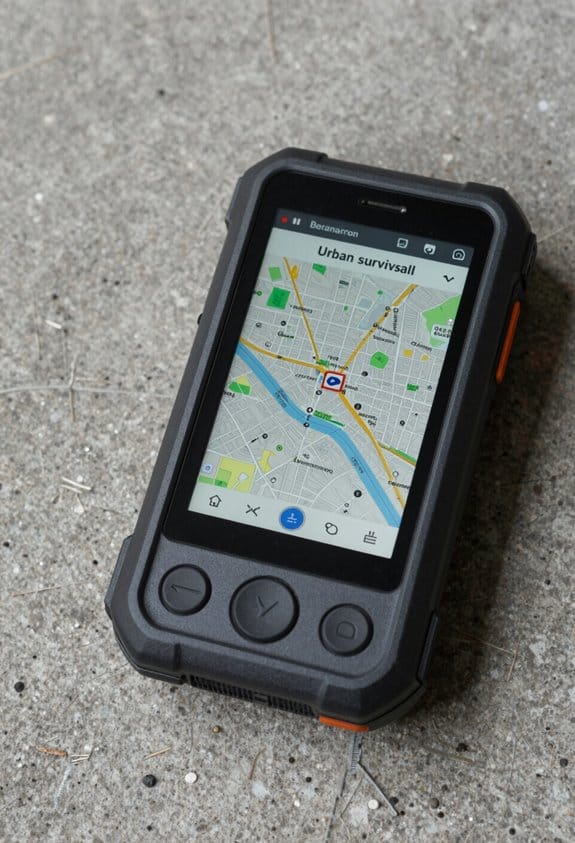
Have you ever wandered around a busy city, only to find your phone struggling to connect to the internet? Trust me, it can be frustrating! That’s why downloading offline maps is a must before heading out to explore urban streets.
When you grab those maps ahead of time, you’re setting yourself up for smooth navigation, even when mobile data drops out or the GPS gets weak. It’s not just about convenience; it saves you from those annoying data charges too. Plus, caching map tiles for the areas you’ll visit makes sure you have detailed info while conserving your device’s storage.
Don’t forget about the bigger picture: emergency responders rely on offline maps in critical situations. They need to get to their destinations without a hitch, even when connectivity is a problem. So, how do you prepare for a day in the city?
- Download maps for your planned routes.
- Update them regularly to reflect any changes and ensure you have the latest info.
- Check that your cached data is complete before you set off.
Being proactive sets you up to navigate confidently, no matter the network conditions. Think of it as your secret weapon for urban adventures. Go ahead, download those maps, and hit the streets armed with the knowledge and tools to get where you want to go! Reliable navigation tools like portable water filters also enhance preparedness when exploring unfamiliar environments.
Enabling Layers and Points of Interest for Offline Maps
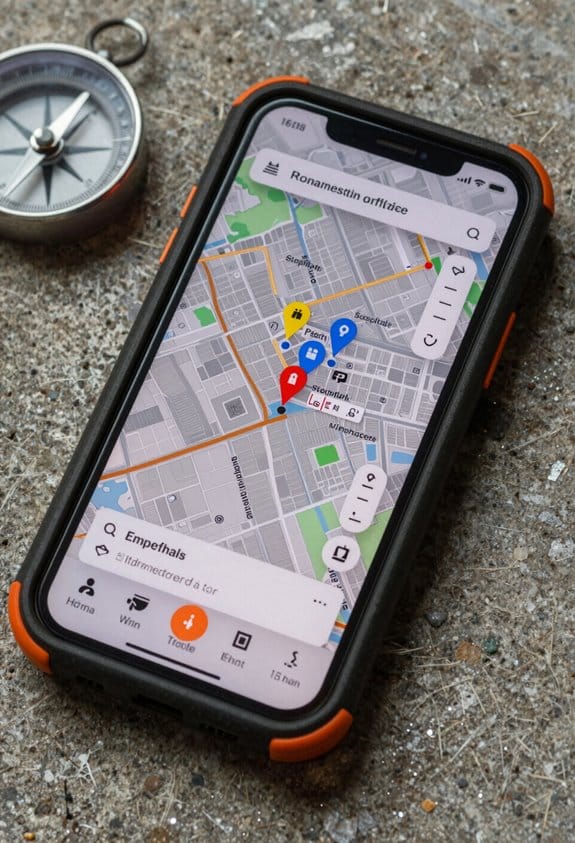
Losing internet connection while exploring can be a total nightmare, especially if you’re relying on maps for navigation. Once you’ve downloaded your offline maps, the real work begins. You need to ensure that all the layers and points of interest you want are good to go when you’re off the grid.
Start by enabling the layers you’ll need for offline use. Make sure synchronization is on, especially for those hosted feature layers that can be a bit tricky. Caching is key here – think of it as downloading packages like raster and vector basemaps. Most are set up automatically, but that Outdoor vector basemap? You’ll have to handle that one manually. So, don’t skip it.
To maintain map detail, include these important layers:
- Hosted tile layers with cache export allowed
- Sketch layers to annotate your travels
- Map note layers for additional info
Using a mobile geodatabase to manage offline areas is a smart move. It makes sure everything runs smoothly while you’re offline. It’s crucial to double-check that all layers in your web map are set up correctly. This step can save you from a major headache during offline navigation and ensures that those points of interest are just a tap away.
Just like with anti-fog technology, proper maintenance and preparation of your offline map layers ensure clarity and usability when you’re disconnected.
In a nutshell, prepping your offline maps can make or break your adventure. Get everything set up, and you’ll be ready for anything the great outdoors throws your way. Happy exploring!
Keep Your Offline Maps Updated Before You Go
Ever been caught in a place without cell service, desperately trying to figure out where you are? It’s a frustrating moment, but there’s a way to avoid it. Keeping your offline maps updated is key to navigating confidently.
Start by downloading the offline packages for the areas you plan to explore. Make sure to grab the ones that matter most. After that, take a moment to customize the boundaries and details. This step is crucial—having the right coverage can make all the difference.
Next up, think about setting a schedule for updates. This can be daily or weekly, depending on how much changes in the places you love to visit. Consistency is everything here. A smooth routine helps keep your maps fresh.
Before you hit the road, don’t forget to sync those offline maps. This last-minute refresh is vital. You want to be sure you have the latest features and layers loaded up since conditions can shift quickly in the wild.
By regularly updating and downloading your offline maps, you significantly cut down the chances of running into outdated navigation data. It’s about staying prepared for anything, especially when your connection might fail you.
For enhanced reliability during navigation, consider using devices with multi-satellite systems to improve global coverage and precision.
Manage Storage and Package Size Effectively
Offline maps are lifesavers. They guide us through places where signals are spotty or non-existent. But if we’re not careful, they can gobble up a lot of storage space on our devices. Managing that space is crucial to keep those maps functional and ready to go.
So, how can you optimize storage? Start by prioritizing which map tiles you really need. Focus on the areas you visit the most and use progressive downloading. This way, you only download what’s necessary instead of a whole slew of data.
Surprisingly, using modern compression techniques can work wonders. These methods can shrink file sizes by up to 80%. That means you save a ton of space without losing any usability. Additionally, think about implementing a least-recently-used (LRU) cache. It actively cleans up old cache tiles when you’re close to your storage limits, freeing up valuable space without you needing to lift a finger.
You might be asking, how do I keep track of all this? Regularly monitor storage usage and loading times. This awareness helps you catch inefficiencies before they become a problem.
Just like in choosing eyewear, prioritizing lightweight designs and efficient materials can significantly enhance overall performance and user experience, similar to how lightweight materials optimize comfort and durability.
Combining these strategies ensures your offline maps stay efficient, accessible, and ready for action, even with limited storage. So, take control of your device storage and keep those maps handy for your next adventure!
Tips to Use Offline Maps Smoothly in the City
Exploring a new city can be both thrilling and challenging, especially when it comes to navigation. You don’t want to get lost and waste precious time. So, how can you make offline maps your best friends when wandering through urban landscapes? Let’s break it down.
First things first, download those offline maps ahead of time. I suggest using popular apps like Google Maps, which can cover specific areas seamlessly. Do this while you’re connected to Wi-Fi. Trust me, pre-loading maps means no annoying network issues or waiting around without internet. You can even pin important places you want to check out – that way, you’re all set before stepping outside.
Storage can be a pain, too. If your phone is cluttered, managing your map storage is essential. Adjust the download sizes and exclude any features you won’t use. There’s usually user feedback available that can help you determine what’s necessary and what’s not.
Also, keep in mind that offline maps don’t last forever. They expire after 365 days. So, make it a habit to refresh your maps regularly to ensure you have the most accurate data.
While you’re adventuring, stick to the offline content you’ve downloaded. If you rely on connectivity in a crowded city, you’ll likely be disappointed.
In short, planning goes a long way in ensuring a smooth navigation experience. Get those offline maps in order, and you’ll cruise through the city like a pro. Remember, the more prepared you are, the more time you’ll have for the fun stuff! Maintaining proper storage and regular inspection of your device’s resources is as critical as respirator care and maintenance practices.
Frequently Asked Questions
How to Save a City Map Offline?
Let’s capture your city map like a treasure, using mobile applications for map downloads. This boosts city navigation, travel planning, and emergency preparedness by optimizing routes, managing data storage, and enhancing GPS functionality and user experience with detailed geographic information.
How Can I Use Google Maps Offline Without Internet?
We use Google Maps’ offline navigation by downloading maps via the mobile app before traveling. This saves data storage and lets us rely on GPS functionality for route planning and urban exploration without internet, ensuring smooth travel preparation.
How Long Do Offline Maps Last?
Like a season’s bloom lasting a year, offline map duration depends on cached map validity and update frequency. Our navigation app longevity and data retention period hinge on local storage, user preferences, and offline GPS functionality, balancing map accuracy and coverage.
What Are the Limitations of Offline Maps?
We face limitations like outdated data updates, reduced location accuracy, limited features like offline search and navigation rerouting, restricted map detail due to storage space, basic user interface, higher battery usage, and minimal emergency support with offline maps.


